

Official websites use .gov

A .gov website belongs to an official government organization in the United States.

Secure .gov websites use HTTPS

A lock (🔒) or https:// means you’ve safely connected to the .gov website. Share sensitive information only on official, secure websites.

Search

SOSBiz Website Help

Need help using SOSBiz? Find answers to common account, filing, and technical questions about Idaho’s online business filing system.

For questions about starting, managing, and maintaining your business in Idaho, visit Frequently Asked Questions for Business.

Account & Access

Yes. You must have an SOSBiz account to file business forms, annual reports, amendments, and other filings with the Idaho Secretary of State.

If you’re a new user, select Create an Account on the SOSBiz login page and follow the prompts to set up your account.

→ Create an SOSBiz account

Already have an account but can’t access your business?

→ Learn how to access an existing business in SOSBiz

1

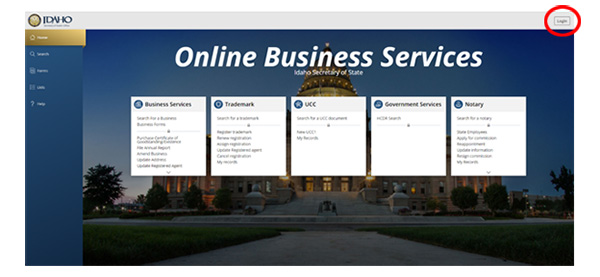
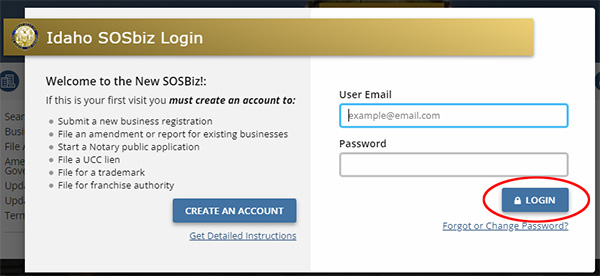
Go to sosbiz.idaho.gov and click Login in the top right.

2

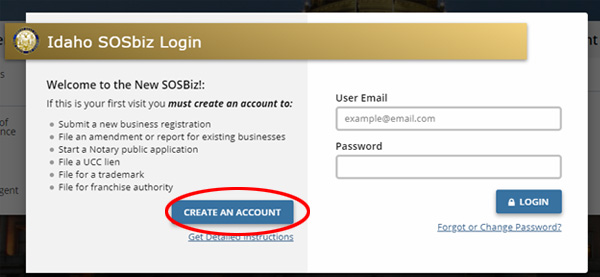
Click Create An Account.

3

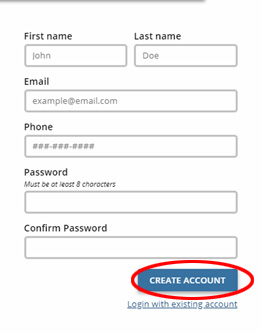
Fill out each section and click Create Account.

If you receive an error that says “Email already exists. Please use a different email address,” you may already have an account. Try the following:

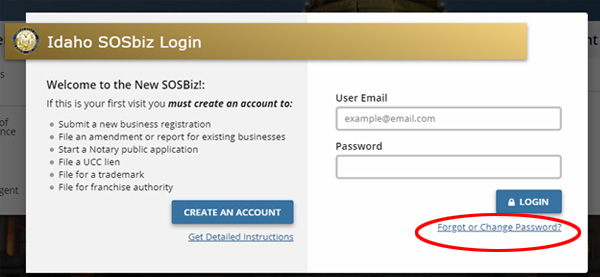
  • Repeat step 1 and click Log In.
  • Click Forgot or Change Password?
  • Follow the prompt and enter the email that already exists. A link will be sent to that email allowing you to create a new password.

Common situations where you may need to request access:

  • The business was originally filed by an attorney, accountant, or filing service.
  • Ownership or leadership has changed.
  • A nonprofit organization has changes in board members or officers.

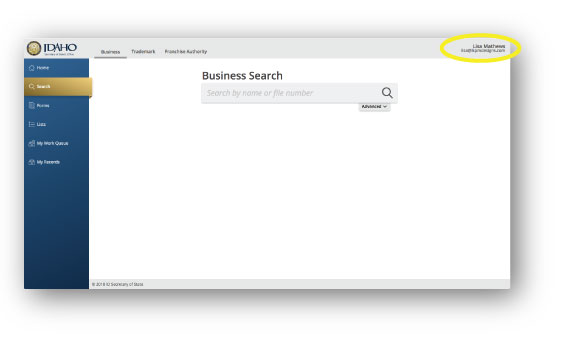
1

Log In Using Your Account Credentials
You will know that you are logged in because you will see your name and email address in the top right corner of your browser window as shown in the example.

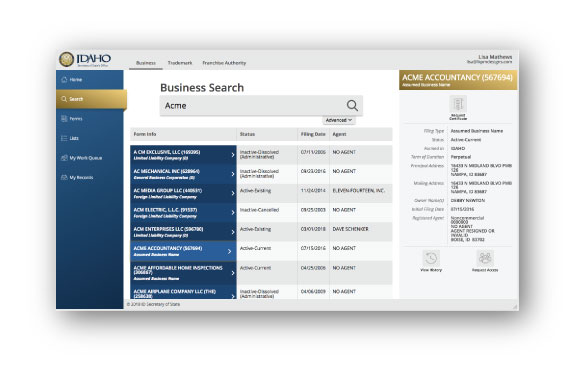
2

Search for Your Business and Select Its Name
When you click on the business name all the information on file with our office will pop out from the right side of the screen.

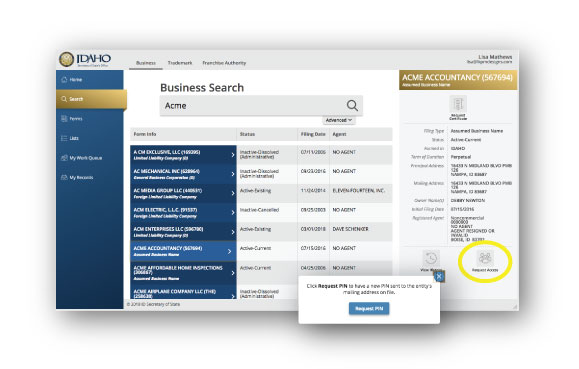
3

Request Access via PIN Verification Process
On the lower right portion of the pop out window you will see an icon that looks like three people together that says “Request Access”. When you click this icon a button will appear that says “Request PIN”. Click this button which will email a PIN number to your account email address.

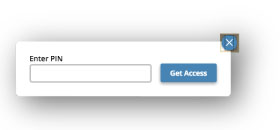
4

Enter PIN and Associate Company to Your Account
Check your email to retrieve the PIN. You should receive it within 5 minutes of requesting it from this system. Copy the PIN from your email and come back to the “Request Access” icon on the pop out window, which will now say “Enter PIN’. Enter the PIN and click ”Get Access”.

5

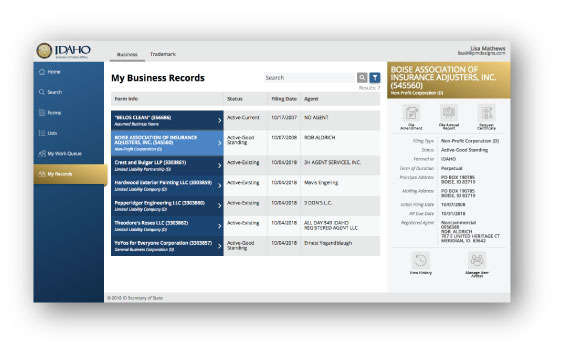
Access Your Company Through Your Dashboard.
Now you have successfully associated your company to your account. You may repeat this process with as many companies as you have need for. Any time you log in you can access these by clicking on “My Records” in the left navigation.

1

Log In Using Your Account Credentials
You will know that you are logged in because you will see your name and email address in the top right corner of your browser window as shown in the example.

2

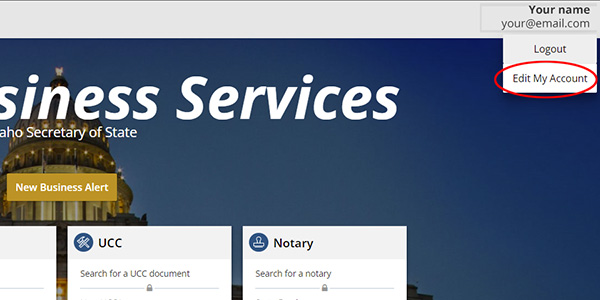
Click on your account name and select “Edit My Account”
Your account name is at the top right of your browser window once you are logged in.

3

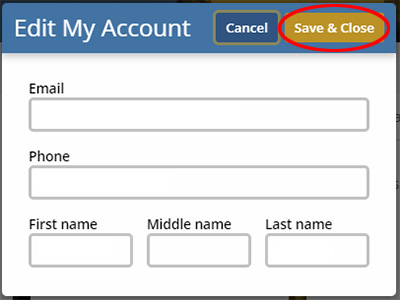
Edit your email address or any other details and click “Save & Close”
You have the option to edit your email address, phone number, and name in this screen.

Filing Help

Once your business is associated with your account, you can file your annual report through SOSBiz by following the steps below.

1

Log In Using Your Account Credentials
You will know that you are logged in because you will see your name and email address in the top right corner of your browser window as shown in the example.

2

Access Your Company Through your Dashboard
In the left navigation menu click on “My Records” and click on your company name that appears in the main work window. 

Is Your Business Missing?

If you do not see your business, or any businesses, during this step, review the help topic on how to associate your business to your account.

3

Review Reports and Amendments Available for Filing
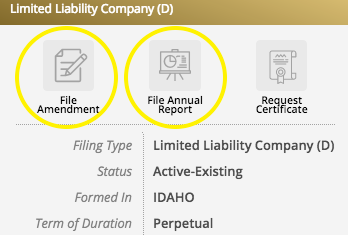
Filing amendments and reports are done very similarly in our system. In this example we will be filing an ANNUAL REPORT. Select the “Annual Report” icon under the business name in the pop out window on the right side of the screen.

4

Verify Information and Move Through Report Fields
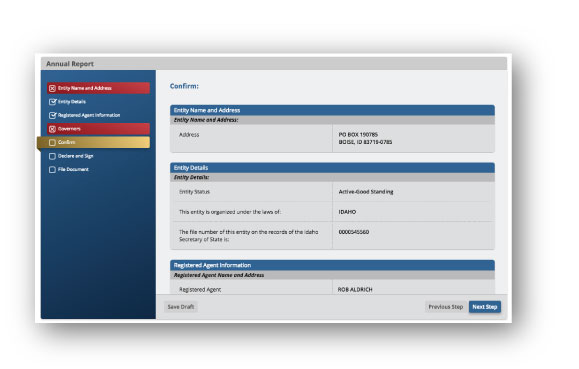
The Annual Report is a simple verification process to confirm entity details. Follow each step to verify these details. In each step the system will prompt you to go back if you are missing steps by flagging the step with a red check box as pictured in the example. Correct any errors and continue until you can confirm each step.

5

Declare, Sign and File Your Document Online
Once you have completed your document each step will be confirmed with a checkmark. You may then complete the filing by signing and filing.

Once your business is associated with your account, you can file amendments through SOSBiz by following the steps below.

1

Log In Using Your Account Credentials
You will know that you are logged in because you will see your name and email address in the top right corner of your browser window as shown in the example.

2

Access Your Company Through your Dashboard
In the left navigation menu click on “My Records” and click on your company name that appears in the main work window. 

Is Your Business Missing?

If you do not see your business, or any businesses, during this step, review the help topic on how to associate your business to your account.

3

Review Reports and Amendments Available for Filing
Filing amendments and reports are done very similarly in our system. In this example we will be filing an AMENDMENT. Select the “Amendment” icon under the business name in the pop out window on the right side of the screen.

4

Verify Information and Move Through Report Fields
Select the amendment you wish to file and complete the form. In each step the system will prompt you to go back if you are missing steps by flagging the step with a red check box as pictured in the example. Correct any errors and continue until you can confirm each step.

5

Declare, Sign and File Your Document Online
Once you have completed your document each step will be confirmed with a checkmark. You may then complete the filing by signing and filing.

1

Is An Additional Document Required with Your Filing?
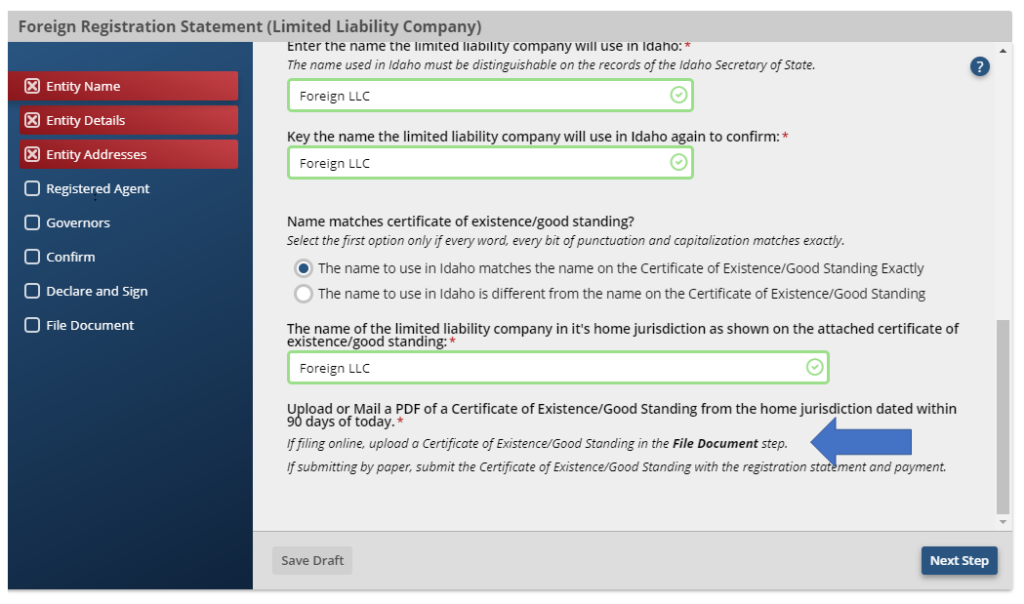
Some filings require you to upload additional documents along with your filing. If an uploaded document is required, the requirement will be indicated with a note similar to that pictured below (see the blue arrow):

2

Upload Your Document During the File Online Step
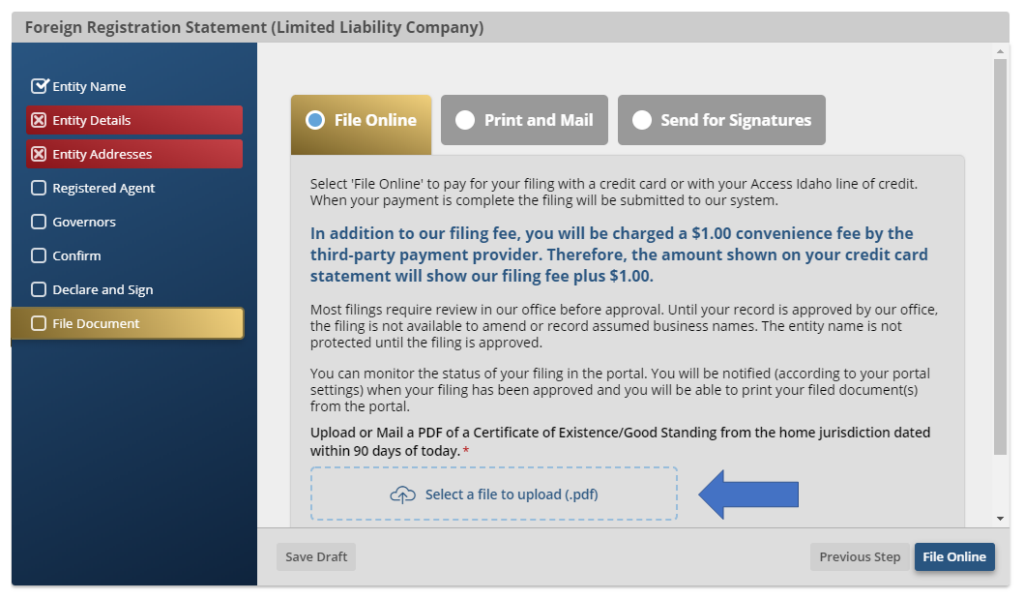
During the “File Online” step of your filing you will have an upload field available to upload any additional documents required for the filing. Simply click the box indicated by the dotted blue border (see blue arrow below) and locate the file on your computer to upload.

3

Once the document is uploaded, you may complete your filing online.

Technical Help

If SOSBiz isn’t displaying correctly, try:

  • Using Google Chrome
  • Refreshing the page
  • Clearing your browser cache
  • Trying a different browser or device

Need More Help?

If you’re still having trouble using SOSBiz, contact the Business Services team for assistance.

Photo: Barn on the prairie near Rathdrum, Idaho.

Subscribe to Updates from Idaho Secretary of State Phil McGrane

* indicates required